
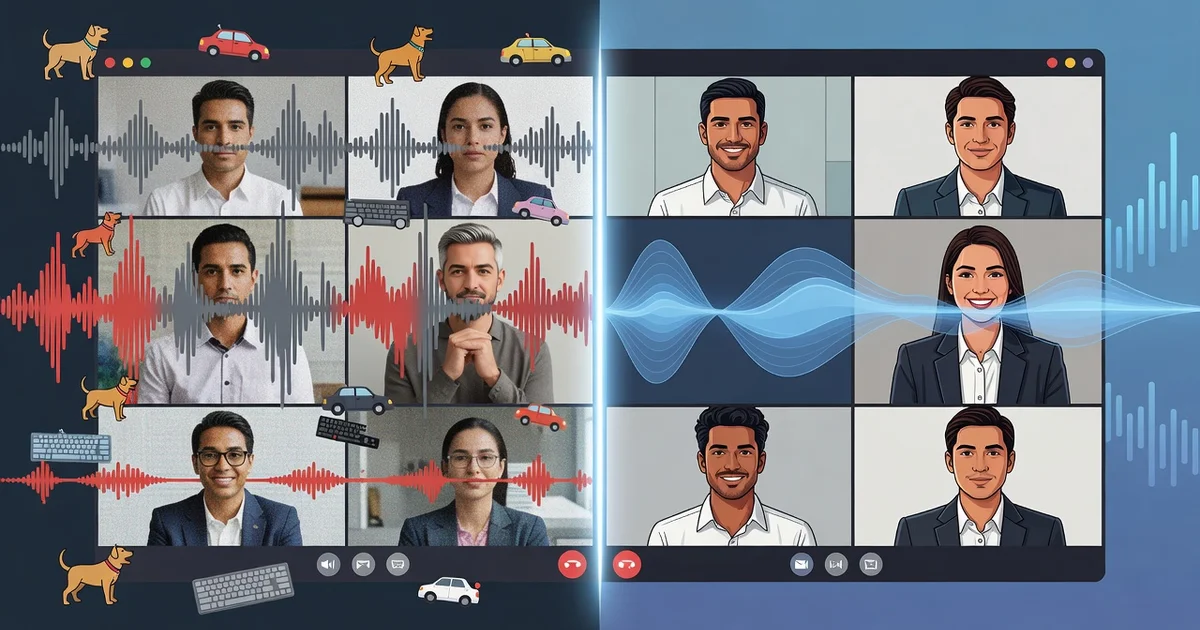
Frozen video is one thing, but choppy, echo-filled audio is what really derails an online meeting. Background noise, keyboard clicks, and barking dogs don’t just annoy participants—they force everyone to repeat themselves, slow decisions, and make remote collaboration feel like a chore.
Fortunately, AI noise reduction changes that experience. Instead of relying on basic filters, modern AI noise reduction separates your voice from surrounding sound in real time, so you sound clear on every call. In this article, we’ll explain how AI noise reduction works, why it outperforms traditional noise cancellation, and what to look for in a tool that keeps your meetings productive.
Introduction
Online meetings have become a daily reality for remote workers, students, and businesses of all sizes. Yet even the most carefully planned video call can be derailed by background noise—a barking dog, a passing siren, the hum of an air conditioner, or the clatter of a keyboard. These distractions don’t just annoy participants; they reduce comprehension, force people to repeat themselves, and make collaboration feel exhausting. This article explores How AI Noise Reduction Improves Online Meetings with clear, practical guidance. Instead of relying on expensive microphones or soundproof rooms, modern software uses artificial intelligence to separate human speech from unwanted sounds in real time. The result is cleaner audio, fewer interruptions, and meetings that feel more professional and productive. Whether you host daily stand-ups, teach online classes, or join client calls from a noisy home office, understanding this technology can transform your communication experience.
Key Concepts
Before diving into settings and software, it helps to understand what AI noise reduction actually does. Traditional noise reduction methods use simple filters—for example, a high-pass filter that cuts low-frequency rumble. These work for steady sounds like fans but struggle with unpredictable noises like a slamming door or a crying baby. AI noise reduction takes a different approach: it uses machine learning models trained on thousands of hours of speech and noise samples. These models learn to recognize the unique patterns of human voices and separate them from everything else.
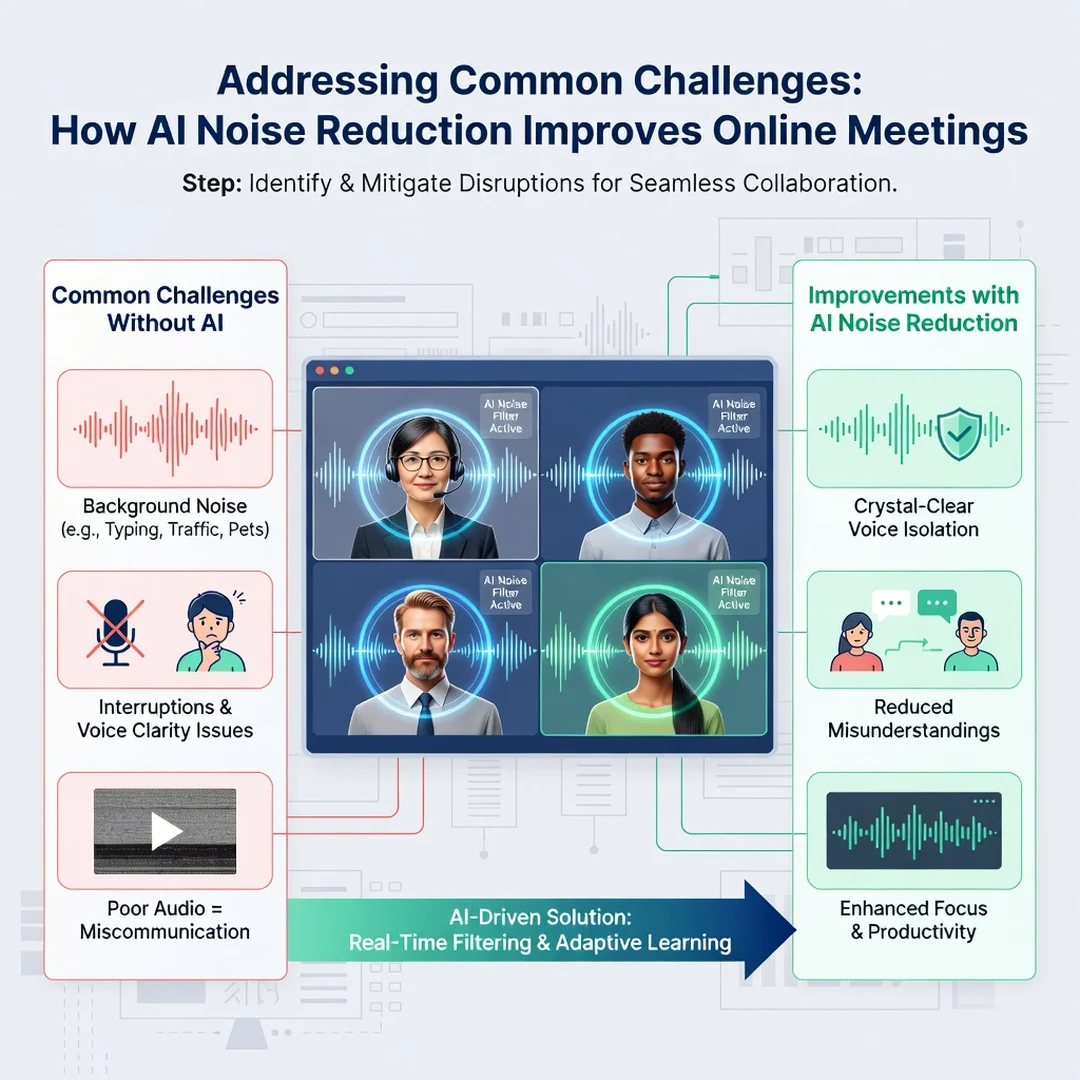
How AI separates speech from noise
At its core, AI noise reduction relies on deep neural networks. When you speak, your microphone captures a mix of your voice and ambient sounds. The AI processes this audio in tiny time frames—often just a few milliseconds—and predicts which parts belong to speech and which belong to noise. It then suppresses the noise components while preserving the speech. This happens continuously, so even if a noise starts suddenly, the system adapts almost instantly.

Real-time vs. post-processing
Some tools apply noise reduction after a recording is complete, which is common in podcast editing. For online meetings, the processing must happen in real time, often called “live” or “streaming” noise suppression. Real-time AI is more challenging because there is no second chance to fix errors. However, modern models are fast enough to run on ordinary laptops and even smartphones, thanks to optimized algorithms and hardware acceleration.
Key benefits for meetings
- Improved intelligibility: When background noise is removed, every word is easier to understand, reducing the need for repetition.
- Less listener fatigue: Constant noise forces the brain to work harder. Clean audio keeps participants focused and less tired.
- Professional impression: Clear sound signals competence and preparation, which matters in client calls and interviews.
- Inclusivity: People with hearing difficulties benefit significantly from reduced noise and clearer speech.
- Flexibility: You can join meetings from a café, a shared office, or a home with children without constant apologies.
Deep Dive
Understanding the fundamentals of How AI Noise Reduction Improves Online Meetings helps you make informed decisions. Not all noise reduction is equal. Some platforms use basic suppression that can make voices sound robotic or “watery.” Advanced AI models preserve natural voice quality while cutting noise. The difference lies in the training data and the model architecture. For example, models trained on diverse languages and accents perform better for global teams. Models trained on specific noise types—like keyboard clicks or traffic—excel in home office settings.
Where AI noise reduction is built in
Many popular meeting platforms now include AI noise suppression as a standard feature. Zoom, Microsoft Teams, Google Meet, and Webex all offer some form of it, often with a simple toggle in audio settings. Some allow you to choose between low, medium, and high suppression. Higher settings remove more noise but may also clip soft speech or remove intentional sounds like a musical instrument. For most meetings, a medium setting is a good balance.
Dedicated software and hardware
If your meeting platform’s built-in noise reduction is not enough, you can use dedicated tools. Applications like Krisp, NVIDIA Broadcast, and RTX Voice run on your computer and process audio before it reaches the meeting app. These tools often provide more granular control and can work across any application. Hardware solutions also exist: some USB microphones and headsets have built-in AI chips that handle noise reduction at the source, reducing the load on your computer.
Limitations to keep in mind
AI noise reduction is powerful, but it is not magic. It works best when the noise is different from human speech. Loud music with vocals, multiple people talking at once, or very sudden sharp sounds can still confuse the model. Also, aggressive noise reduction can introduce artifacts—unnatural pauses or metallic tones. Always test your setup before an important call. Finally, AI noise reduction does not improve a poor microphone. If your voice sounds muffled or distant, a better microphone will help more than any software.
The role of consistent habits
Reliable information and consistent habits lead to better long-term outcomes. Even the best AI noise reduction works better when you follow basic audio hygiene: speak at a steady volume, keep the microphone at a consistent distance, and avoid tapping or shuffling papers near the mic. These habits reduce the workload on the AI and produce more natural results. Over time, you will learn which rooms in your home or office produce the best audio and which settings work best for different types of meetings.
Best Practices
To get the most from AI noise reduction, combine technology with smart routines. Start by identifying your most common noise problems. Is it a noisy street, a shared workspace, or household appliances? Once you know the enemy, you can choose the right tool and settings. Here are practical best practices.
- Test before you rely: Record a short test meeting or use the platform’s audio test feature. Listen to how your voice sounds with noise reduction on and off.
- Choose the right suppression level: Use low suppression in quiet rooms to preserve natural voice, and high suppression in noisy environments.
- Position your microphone correctly: A headset mic or a directional USB mic placed 6–12 inches from your mouth captures clearer speech and less room noise.
- Use a dedicated AI tool for critical calls: If you frequently join calls from noisy places, install a dedicated noise reduction app that works across all meeting platforms.
- Update your software: AI models improve with updates. Keep your meeting apps and audio drivers current.
- Combine with other techniques: Use a pop filter, close windows, and mute when not speaking. AI is a supplement, not a replacement for good audio practice.
- Respect others: If you are in a very noisy environment, consider muting more often and using the chat function. No AI can fully eliminate a nearby construction site.
Step-by-Step Guide to Implementing AI Noise Reduction
Follow these six steps to improve your online meeting audio systematically.
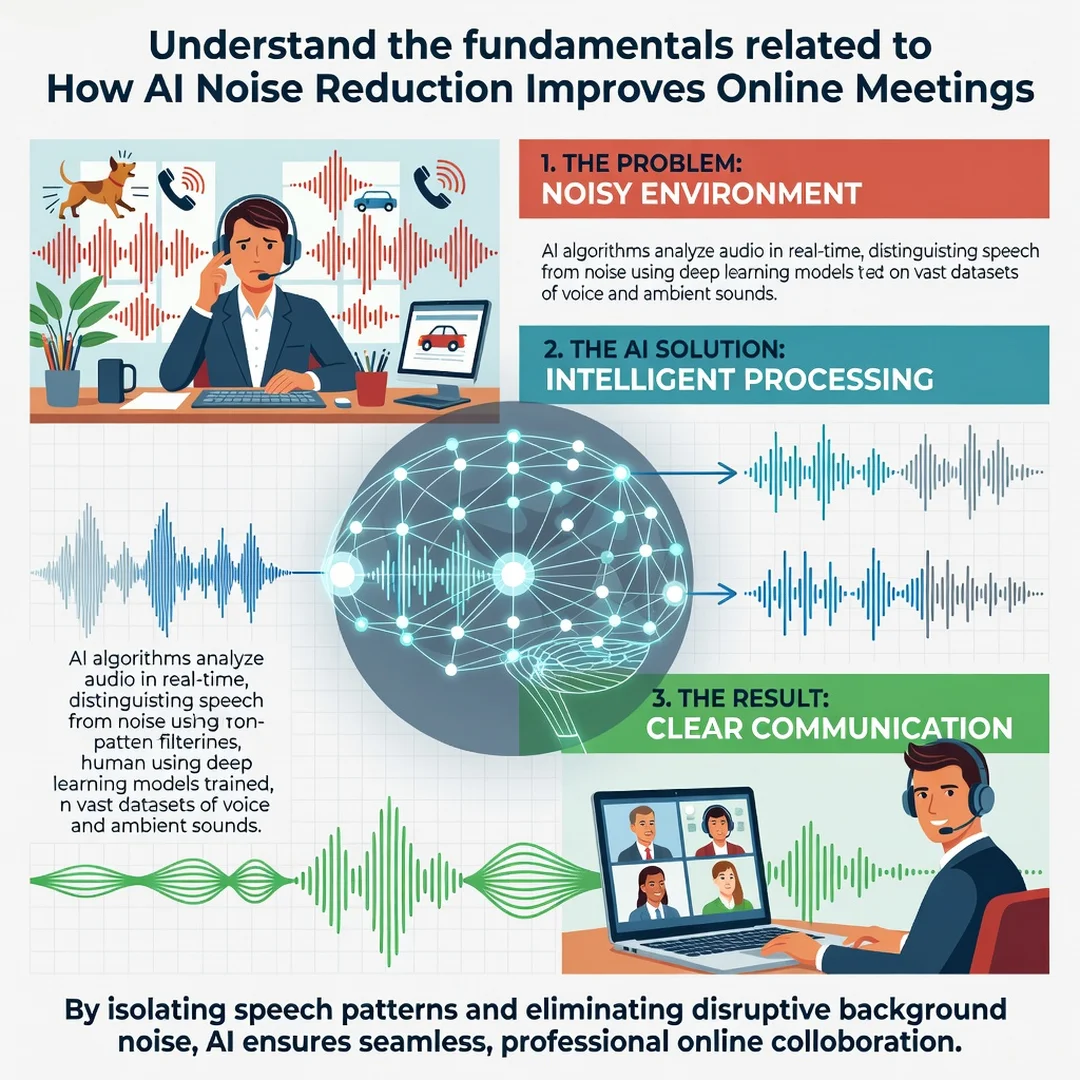
Step 1: Understand the fundamentals
Learn the difference between basic noise suppression and AI-driven noise reduction. Basic suppression cuts everything below or above certain frequencies, which can make voices sound thin. AI-driven reduction uses neural networks to separate speech from noise, preserving voice quality. Read your meeting platform’s help documentation to see which type it uses. This knowledge helps you set realistic expectations and choose the right settings.
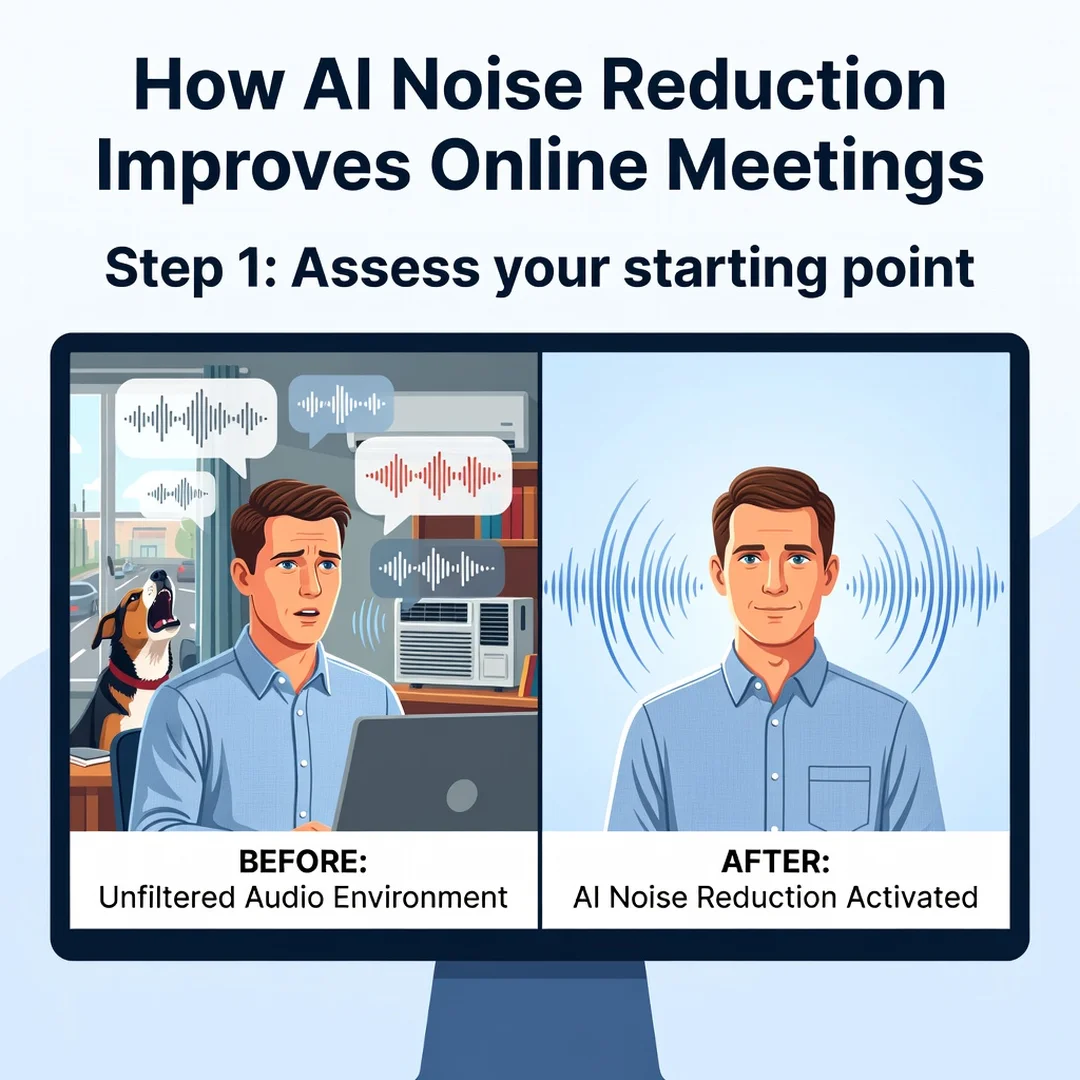
Step 2: Assess your starting point
Before changing anything, evaluate your current audio. Join a test meeting and record yourself speaking while background noise is present. Listen to the recording with headphones. Note how much noise comes through and how clear your voice sounds. Also check your equipment: what microphone and headset do you use? Is your computer’s audio driver up to date? This baseline will help you measure improvement later.
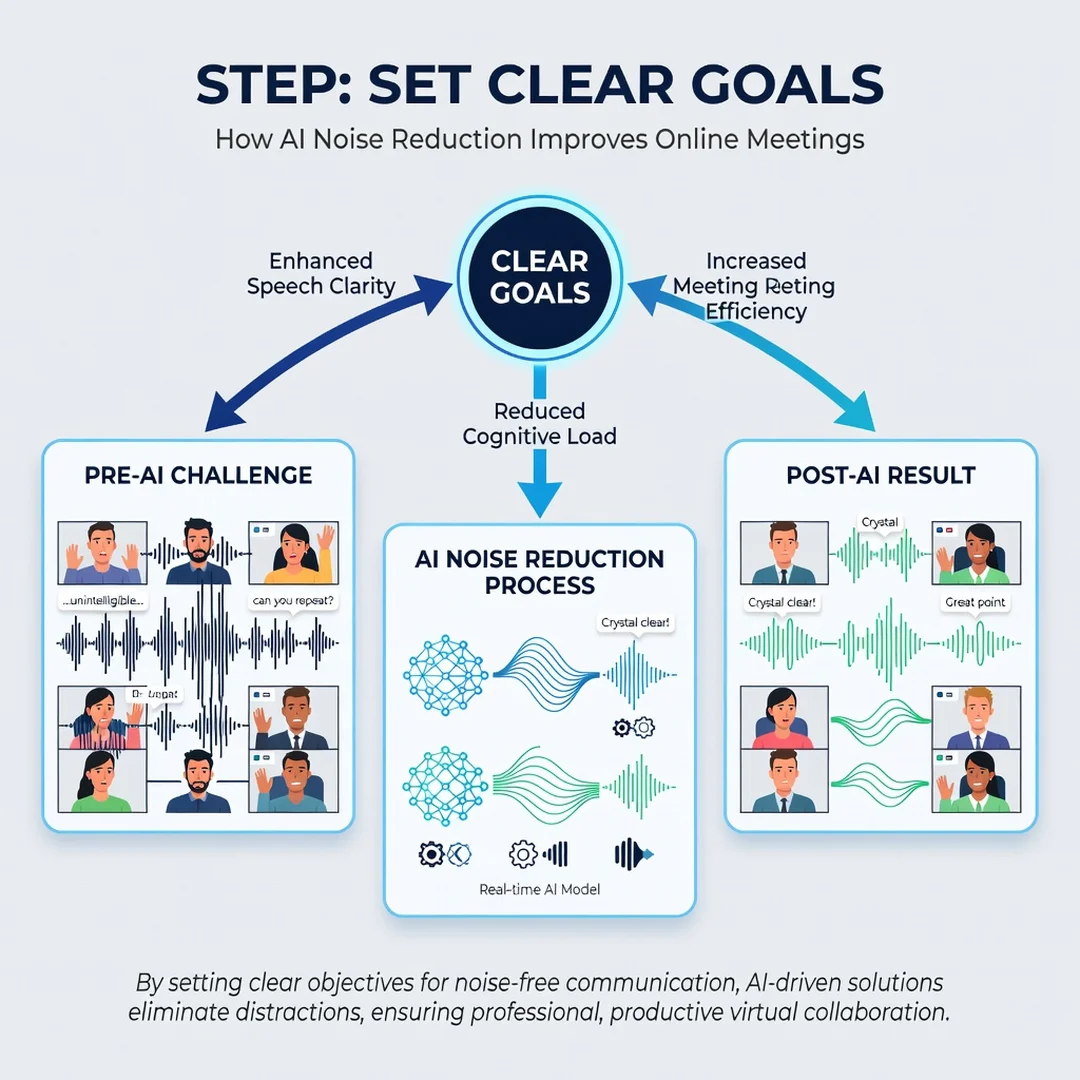
Step 3: Set clear goals
Define what success looks like for you. For example, your goal might be “reduce keyboard noise so colleagues don’t hear typing during calls” or “sound professional during client presentations from my home office.” Write down specific, measurable goals. If you host meetings, you might aim for zero complaints about background noise. Clear goals guide your choices about which tools and settings to use.
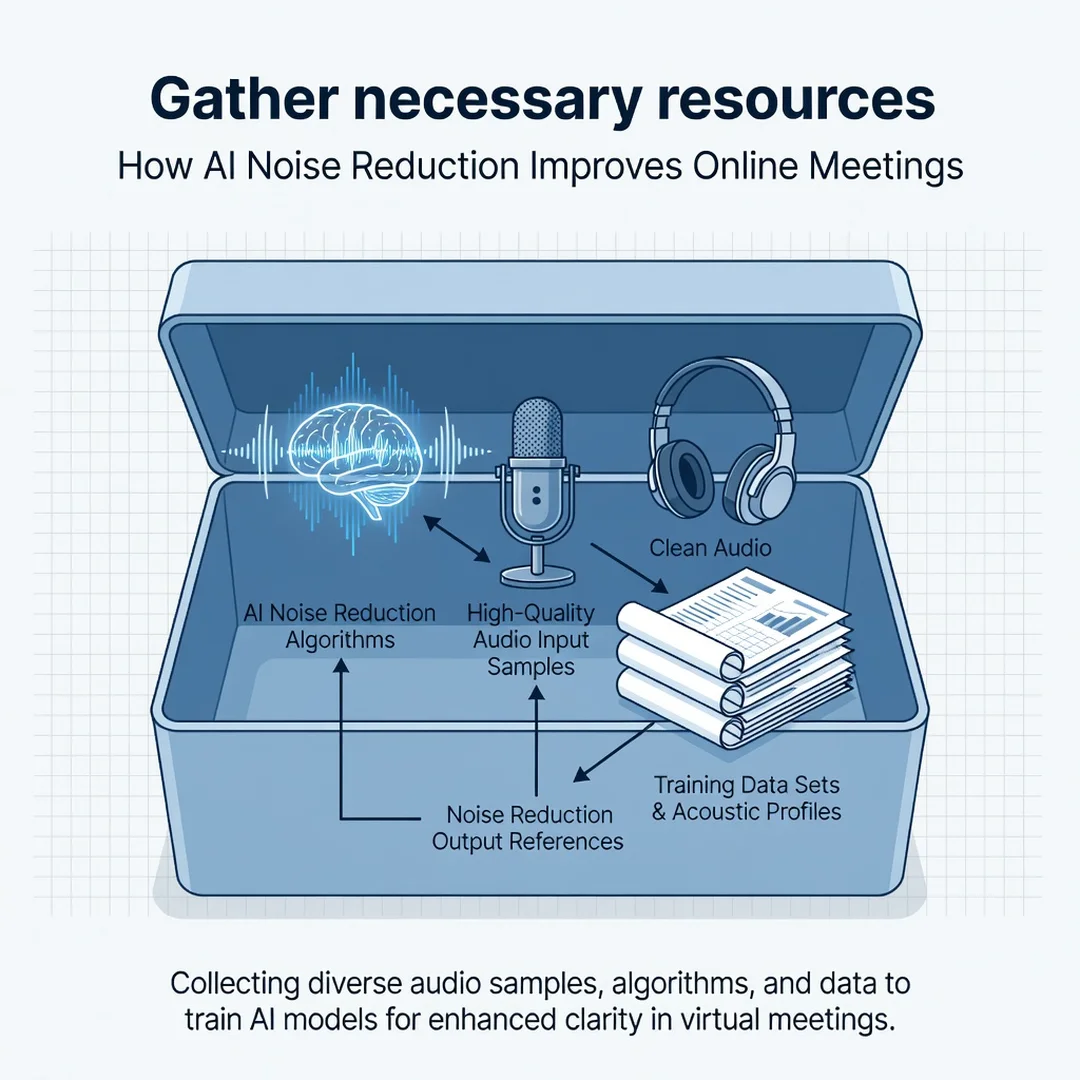
Step 4: Gather necessary resources
Collect the tools you need. This may include a better microphone, a dedicated noise reduction app, or simply enabling the built-in feature in your meeting software. Check if your organization provides licenses for premium tools. Also gather information: read reviews, watch tutorials, and ask colleagues what works for them. Make sure your computer meets the system requirements for any AI software you plan to run.
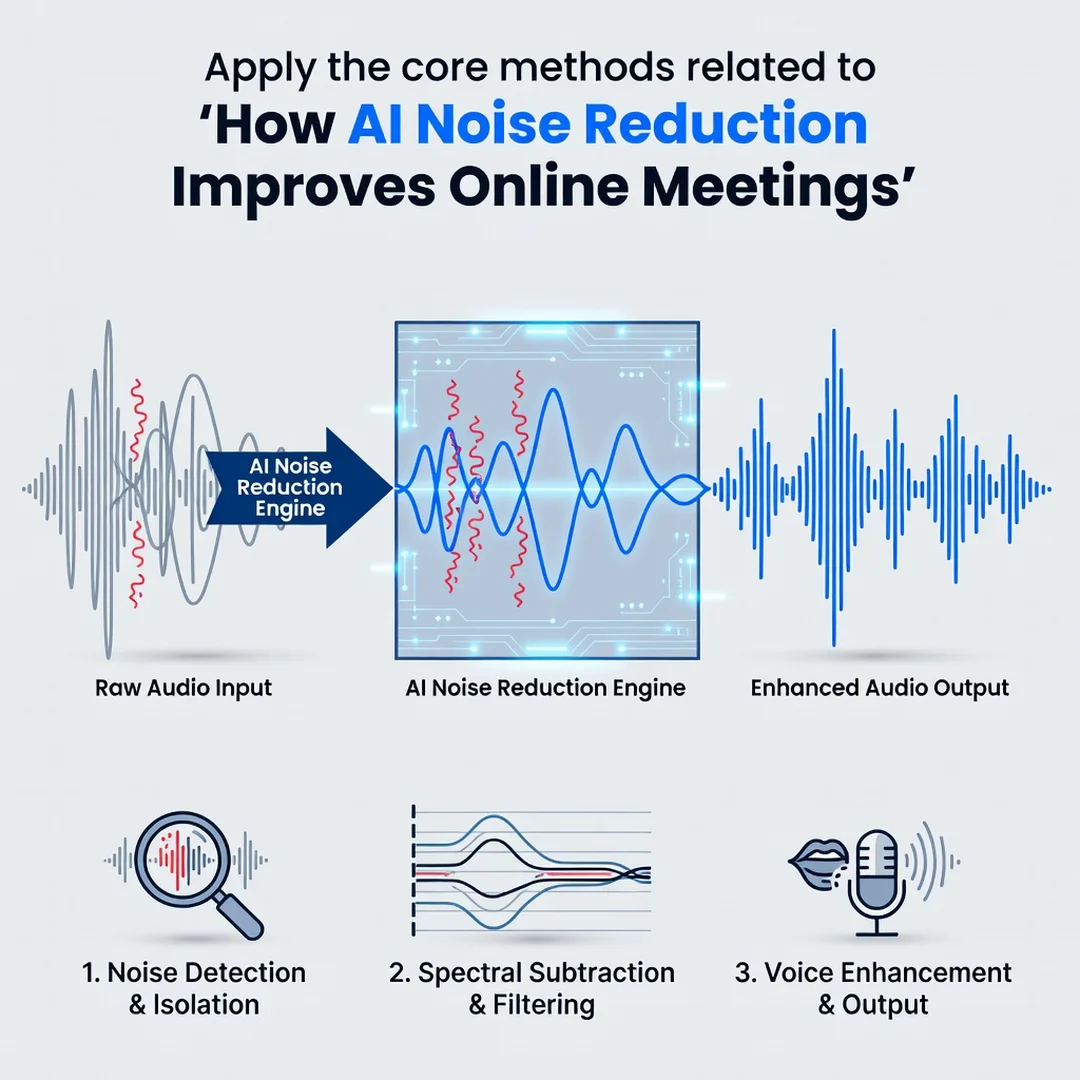
Step 5: Apply the core methods
Now put your plan into action. Enable AI noise reduction in your meeting platform and set the suppression level to medium or high. If you installed a dedicated app, configure it to process your microphone input before it reaches the meeting app. Test different microphone positions and room setups. For example, try moving your desk away from a window or adding a soft surface like a rug to reduce echo. Apply one change at a time so you can identify what works best.
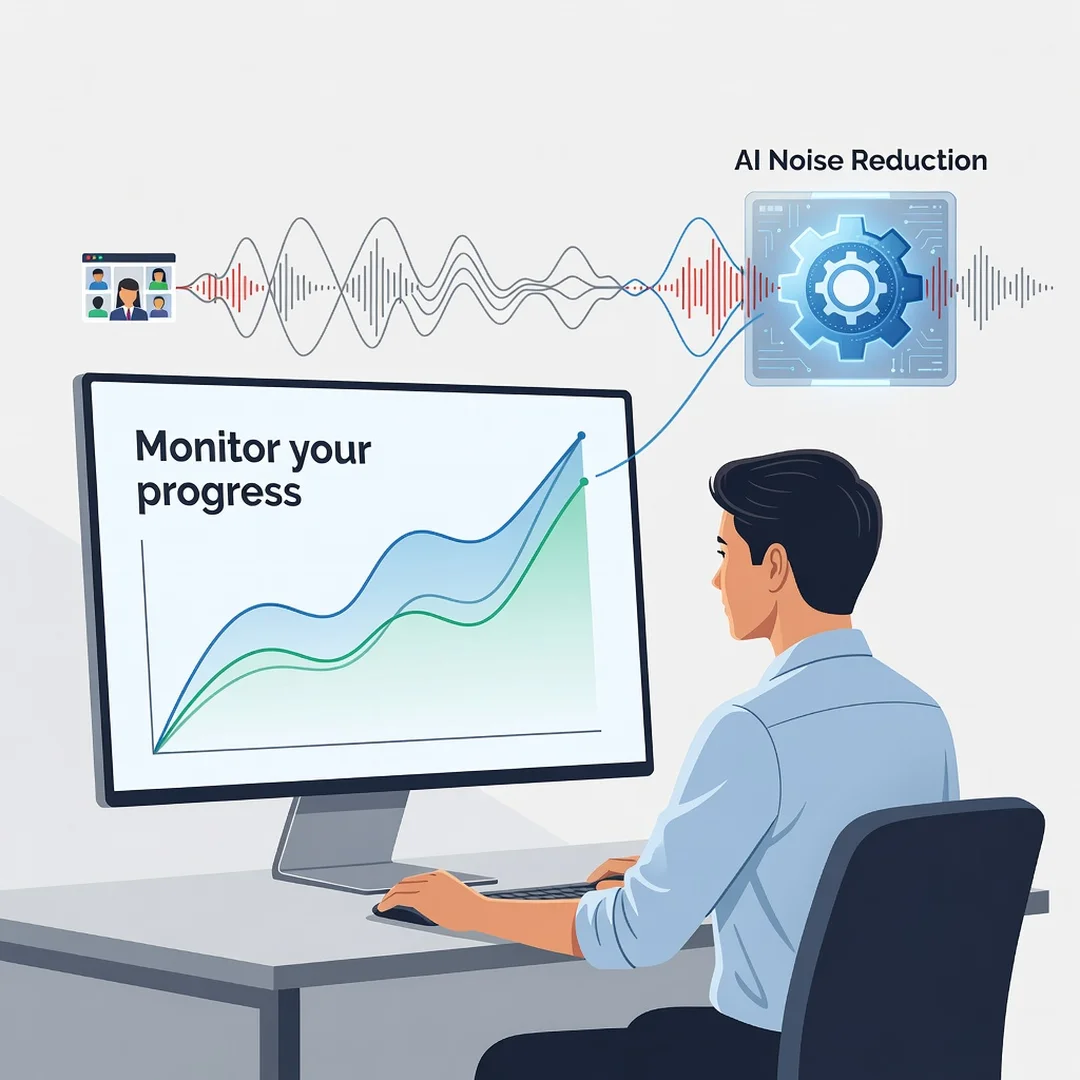
Step 6: Monitor your progress
After implementing changes, monitor results over several meetings. Ask trusted colleagues for feedback on your audio quality. Record short samples and compare them to your baseline. If noise still comes through, adjust settings or try a different tool. Keep a log of what works in different situations—for example, which settings you use in a quiet room versus a noisy café. Over time, you will develop a reliable routine that ensures clear audio in any meeting.
FAQ
What should I know about How AI Noise Reduction Improves Online Meetings?
You should know that AI noise reduction is not a single feature but a category of technologies. It works best on steady or repetitive noises and less well on sudden or speech-like sounds. It requires some processing power, so older computers may struggle with high settings. Most importantly, it is not a substitute for a good microphone and sensible audio habits. Understanding these basics helps you choose.
You now have a solid foundation for How AI Noise Reduction Improves Online Meetings. Apply the best practices above and revisit this guide as your needs evolve.