

Internet problems never strike at a convenient time. Whether your connection is crawling, dropping out, or refusing to load pages entirely, guessing at the cause only wastes time. That’s where the best free network tools come in—they pinpoint exactly what’s wrong, from weak Wi-Fi signals to DNS failures and packet loss.
In this guide, we’ll walk through the most reliable free tools for diagnosing internet issues, explain what each one does, and show you how to read the results. No technical background required—just clear, actionable steps to get you back online fast.
Introduction
Few things are as frustrating as a slow or unreliable internet connection, especially when you cannot tell whether the problem is your router, your internet service provider (ISP), or the website you are trying to reach. The good news is that you do not need to be a network engineer to diagnose these issues. A handful of free, widely available network tools can help you pinpoint exactly where the breakdown is happening. This article explores the best free network tools for diagnosing internet problems with clear, practical guidance. Whether your Wi-Fi keeps dropping, streaming stutters, or video calls freeze, the tools and techniques below will help you move from frustration to a fix.
Key Concepts
Before diving into specific tools, it helps to understand a few core networking concepts. These ideas form the vocabulary you will use when interpreting results and deciding what to do next.
- Latency (ping): The time it takes for a small data packet to travel from your device to a server and back, measured in milliseconds (ms). Lower is better. Under 50 ms feels snappy; over 150 ms causes noticeable lag.
- Packet loss: The percentage of data packets that never arrive at their destination. Even 1–2% packet loss can cause stuttering audio, frozen video, and failed downloads.
- Bandwidth vs. throughput: Bandwidth is the theoretical maximum capacity of your connection. Throughput is what you actually get in practice. ISPs advertise bandwidth; your real-world experience depends on throughput.
- Jitter: Variation in latency over time. High jitter makes real-time applications like VoIP and gaming unreliable even when average ping looks fine.
- DNS (Domain Name System): The service that translates human-friendly domain names into IP addresses. A slow or failing DNS server can make every website feel broken even if your connection is fine.
- Local network vs. internet: Problems can originate inside your home (router, Wi-Fi interference, bad cable) or outside (ISP outage, congested backbone). Good diagnostics separate the two.
Understanding these fundamentals helps you make informed decisions instead of guessing. When a tool reports high packet loss, for example, you will know to check your local cable connections before calling your ISP.
Deep Dive
This section covers the best free tools available across major platforms and explains what each one is best at. You do not need all of them; start with two or three that match your operating system and the symptom you are seeing.
Ping and Traceroute (Built into every OS)
Ping sends small packets to a target (like 8.8.8.8 or google.com) and reports how long each round trip takes. It is the fastest way to check basic reachability and latency. Traceroute (called tracert on Windows) shows every router your traffic passes through on the way to a destination. This is invaluable for spotting where delays begin—if the first hop (your router) already shows high latency, the problem is local; if latency jumps at hop 7 inside your ISP’s network, the problem is theirs.
- Windows: open Command Prompt and type ping google.com or tracert google.com.
- macOS/Linux: open Terminal and type ping google.com or traceroute google.com.
Speedtest.net and Fast.com
These browser-based and app-based tools measure download speed, upload speed, and ping. Speedtest.net lets you choose servers, which is useful for testing against different locations. Fast.com (by Netflix) is minimal and focuses on download speed, making it a quick sanity check when streaming buffers. Run tests at different times of day—peak evening hours often reveal congestion that morning tests miss.
WiFiman (Ubiquiti) and NetSpot
Wi-Fi problems are extremely common. WiFiman is a free mobile app that scans your wireless environment, shows channel congestion, and tests throughput. NetSpot offers a free tier for heat-mapping your home to find dead zones. If your connection drops only in certain rooms, these tools will show you exactly where signal strength falls off and which neighboring networks are competing for the same channels.
Wireshark
Wireshark is a free, open-source packet analyzer. It is more advanced than the other tools here, but it is unmatched when you need to see exactly what is happening on your network. You can filter by protocol, follow a single TCP stream, and detect retransmissions that indicate packet loss. Beginners can use it to confirm whether a specific application is failing to connect or whether traffic is even leaving the device.
DNSBench and Namebench
If web pages take a long time to start loading but then load quickly, your DNS may be slow. DNSBench (Windows) and Namebench (cross-platform, though older) test your configured DNS servers against public alternatives like Google DNS (8.8.8.8) and Cloudflare (1.1.1.1). Switching to a faster resolver can noticeably improve perceived browsing speed.
SmokePing and PingPlotter (Free Tier)
These tools continuously monitor latency and packet loss over hours or days. PingPlotter’s free version provides a graphical traceroute that updates over time, making intermittent problems visible. SmokePing is a Linux-friendly option for long-term monitoring. If your connection “sometimes” drops, these tools turn vague complaints into clear evidence you can show your ISP.
Step-by-Step: Diagnosing Internet Problems
Follow these steps in order. Each one narrows the problem further, so you rarely need to complete every step.

Step 1: Understand the fundamentals
Review the Key Concepts section above. Know the difference between latency, packet loss, and throughput before you start testing. This prevents misinterpreting results. For example, a speed test showing 200 Mbps download but 400 ms ping tells you the problem is latency, not bandwidth.
Step 2: Assess your starting point
Document the exact symptoms: When does the problem occur? Which devices are affected? Is it all internet traffic or only specific apps? Run a quick ping to your router (usually 192.168.1.1 or 192.168.0.1) and to a public address like 8.8.8.8. If pinging the router fails or shows high latency, the issue is inside your home network. If the router responds quickly but 8.8.8.8 does not, the issue is upstream.
Step 3: Set clear goals
Decide what “fixed” looks like. Reasonable targets: ping under 50 ms to common servers, zero packet loss during a 100-ping test, and at least 70% of your advertised download speed during off-peak hours. Write these down so you can measure improvement objectively.
Step 4: Gather necessary resources
You need a computer or smartphone, access to your router’s admin page (username and password), and an ethernet cable for isolating Wi-Fi issues. Install one speed test app, one Wi-Fi analyzer, and have your OS terminal ready. If you plan to monitor over time, download PingPlotter or set up SmokePing.
Step 5: Apply the core methods
Work from the inside out. First, test with an ethernet cable directly to the router. If the problem disappears, it is a Wi-Fi issue—use your Wi-Fi analyzer to change channels or reposition the router. If the problem persists on ethernet, run traceroute to identify the failing hop. Test a different DNS server if browsing feels slow. Use Wireshark only if simpler tools cannot explain the symptom. Record every result with timestamps.
Step 6: Monitor your progress
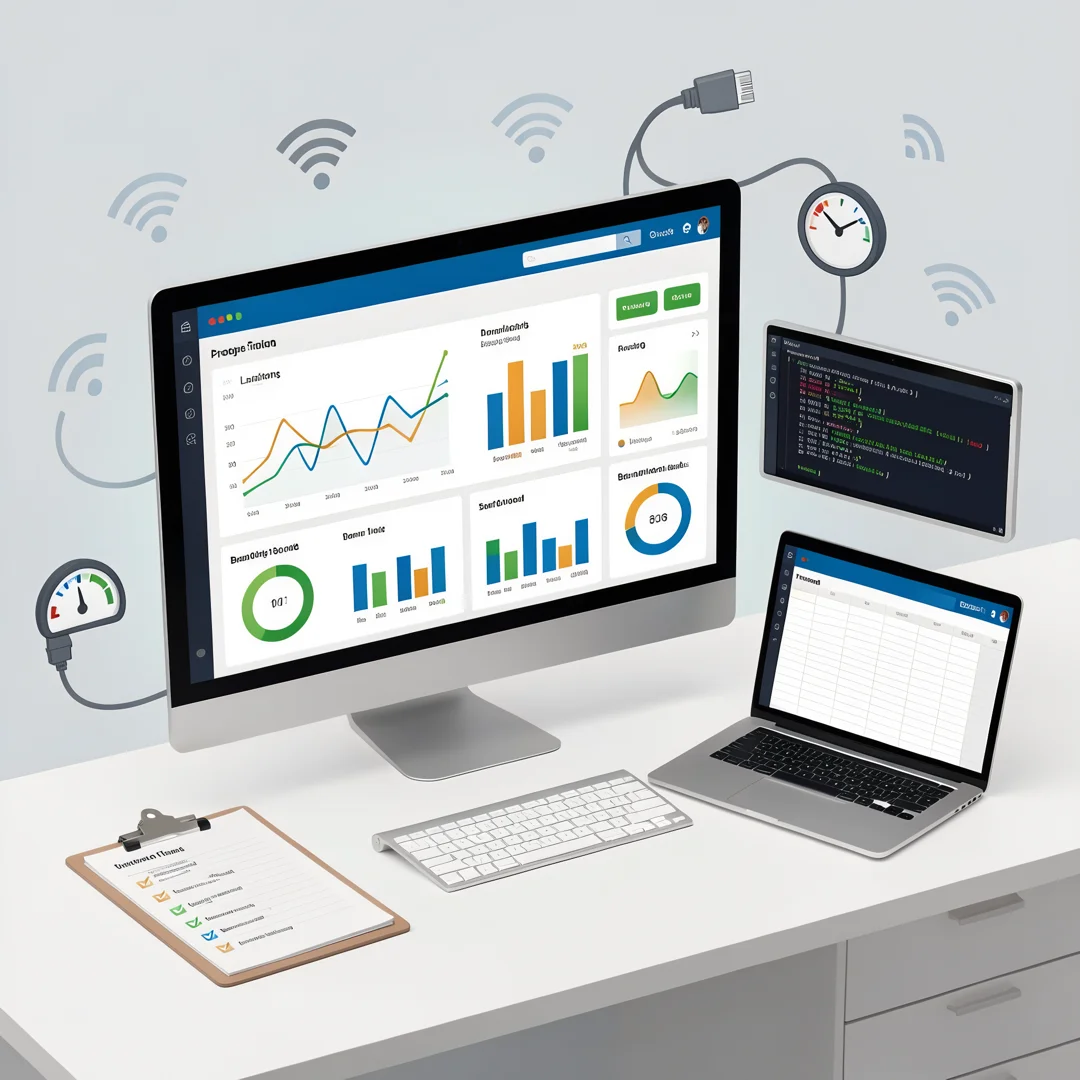
After making a change (new DNS, different Wi-Fi channel, router firmware update), run the same tests again at the same time of day. Keep a simple log. If the problem returns, your log will show whether it correlates with peak hours, specific applications, or particular destinations. This evidence is also exactly what ISP support teams ask for when you escalate.
Best Practices
Reliable information and consistent habits lead to better long-term outcomes. These practices will save you time and prevent false conclusions.
- Test at different times. A single test is a snapshot. Run tests in the morning, evening, and during peak hours to see patterns.
- Use wired connections for baseline tests. Wi-Fi introduces variables that can mask the real problem.
- Restart equipment properly. Unplug the router and modem, wait 30 seconds, then plug the modem in first, followed by the router. This clears many transient issues.
- Keep firmware updated. Router manufacturers frequently patch performance and security bugs.
- Document everything. Note dates, times, tools used, and results. Screenshots help.
- Change one thing at a time. If you change DNS and Wi-Fi channel simultaneously, you will not know which fix worked.
- Know when to escalate. If traceroute consistently shows packet loss starting at your ISP’s first router, contact them with your logs. No amount of home troubleshooting will fix their network.
- Be cautious with “free” tools. Stick to well-known, reputable tools. Some free network utilities bundle adware or request unnecessary permissions.
FAQ
What should I know about Best Free Network Tools for Diagnosing Internet Problems?
The most important thing to know is that no single tool does everything. Ping and traceroute are built into your operating system and should be your first stop. Speed tests measure bandwidth, Wi-Fi analyzers measure wireless signal quality, and packet analyzers like Wireshark reveal deep protocol-level details. Most home users can solve the majority of problems with ping, traceroute, a speed test, and a Wi-Fi scanner. The key is to test systematically: check your local network first, then your ISP connection, then specific destinations. Free tools are fully capable of this—you do not need paid software for routine diagnostics. Also remember that interpretation matters more than the tool itself. A high ping number means nothing unless you know whether it is local or remote, consistent or intermittent.
Who is this guide for?
This guide is for anyone who uses a home or small-office internet connection and wants to solve problems without hiring a technician. That includes remote workers dealing with video call drops, gamers fighting lag, streamers troubleshooting buffering, and everyday users who just want their Wi-Fi to work reliably. No prior networking knowledge is assumed. If you can open a terminal or install an app, you can follow the steps. More experienced readers will still find value in the structured diagnostic sequence and the long-term monitoring recommendations, which are often skipped in favor of random guesswork. The tools listed are free, cross-platform where possible, and safe to use.
Conclusion
Diagnosing internet problems does not require expensive equipment or a technical background. With free tools like ping, traceroute, Speedtest, WiFiman, and Wireshark, you can isolate whether an issue lives.
You now have a solid foundation for Best Free Network Tools for Diagnosing Internet Problems. Apply the best practices above and revisit this guide as your needs evolve.