
Stepping into the world of Linux can feel overwhelming, but the right toolkit makes all the difference. Whether you’re managing a single server or an entire fleet, mastering Linux system administration tools is the fastest way to gain confidence and keep your systems running smoothly.
In this guide, we’ll explore 10 essential tools every beginner and IT administrator should know. From monitoring performance to managing users and packages, these utilities will help you troubleshoot faster, automate routine tasks, and build a solid foundation for your Linux journey.
Introduction
Linux powers a huge portion of the modern internet, from web servers and cloud platforms to embedded devices and enterprise data centers. For beginners and IT administrators, learning the core tools of Linux system administration is one of the most valuable skills you can develop. This guide covers 10 Essential Linux System Administration Tools for Beginners in practical, step-by-step detail. Whether you are preparing for a certification, managing your first server, or supporting a small business network, these tools form the foundation of daily Linux work.
System administration is not about memorizing commands. It is about understanding how a Linux system is organized, how to observe what it is doing, and how to make controlled changes without breaking things. The ten tools in this guide are chosen because they appear in almost every real-world environment. They help you navigate the file system, manage users and permissions, install software, monitor performance, and troubleshoot problems.
Before installing or running any new administration tool, always verify software compatibility with your hardware architecture (ARM64 vs x86). A package built for x86_64 will not run on an ARM64 server, and vice versa. Likewise, keeping your operating system updated before installation prevents dependency conflicts. Many failed installations happen because the base system is outdated. Run your package manager updates first, then install what you need.
Key Concepts
Before diving into the ten tools, you need a small set of concepts that make everything else easier to understand. These ideas appear repeatedly in Linux administration.
The shell and the terminal
The shell is the program that interprets your typed commands. Bash is the most common default shell, though zsh and fish are also popular. The terminal is the window or console where you interact with the shell. Almost every administration tool is used through the shell, so comfort with basic command syntax, pipes, and redirection is essential.
File system hierarchy
Linux organizes files in a single tree starting at the root directory, written as /. Important directories include /etc for configuration files, /var for variable data such as logs, /home for user files, and /usr for installed software. Knowing where things live saves hours of searching.
Users, groups, and permissions
Linux is a multi-user system. Every file has an owner, a group, and a set of permissions that control who can read, write, or execute it. Administrative tasks usually require elevated privileges through the sudo command.
Package management
Software on Linux is usually installed through a package manager. Debian and Ubuntu use apt; Red Hat, Fedora, and CentOS use dnf or yum; Arch uses pacman. Package managers resolve dependencies automatically, which is why keeping your system updated matters so much.
Processes and services
A process is a running program. A service, sometimes called a daemon, is a background process that provides functionality such as web serving or time synchronization. Modern Linux uses systemd to manage services.
Deep Dive
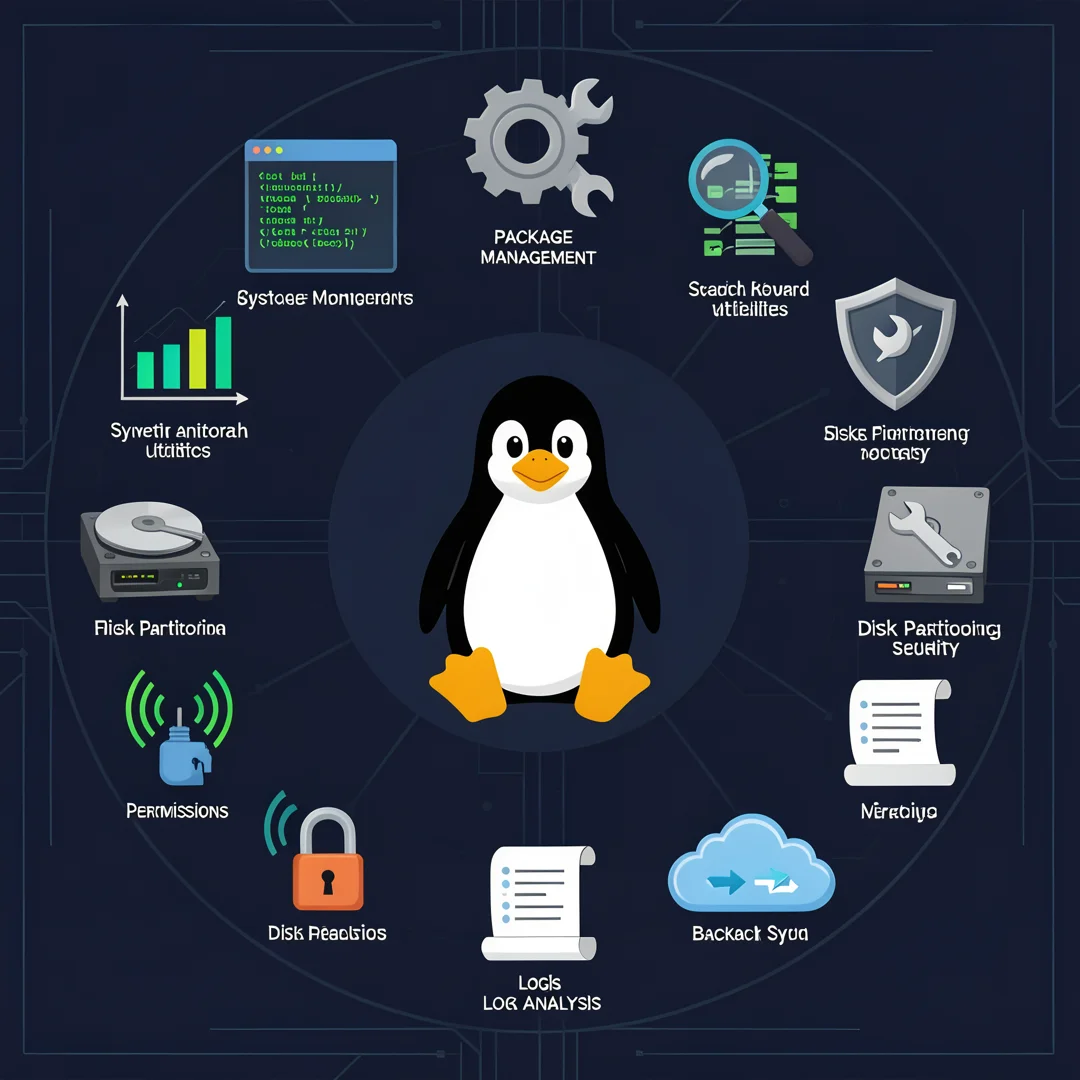
Here are the ten essential Linux system administration tools for beginners. Each entry explains what the tool does, why it matters, and a typical use case.
- 1. The Bash shell: Your primary interface to the system. Learning command history, tab completion, variables, and simple scripts multiplies your efficiency. Start by practicing navigation with cd, ls, and pwd.
- 2. man and help pages: The built-in documentation system. Running man ls shows the manual for the ls command. This is the fastest way to learn options without leaving the terminal.
- 3. sudo: Allows permitted users to run commands with administrative privileges. It logs who ran what, which is critical for accountability. Always prefer sudo over logging in as root directly.
- 4. apt, dnf, or pacman: Package managers that install, update, and remove software. They handle dependency resolution and security updates. On Debian-based systems, apt update followed by apt upgrade is a daily habit.
- 5. systemctl: The control interface for systemd services. Use it to start, stop, enable, and check the status of services such as SSH or a web server. For example, systemctl status ssh shows whether SSH is running.
- 6. top and htop: Real-time process monitors. top is installed by default on nearly every distribution; htop is a friendlier alternative with color and scrolling. They show CPU, memory, and process usage.
- 7. df and du: Disk usage tools. df -h shows free space on mounted file systems, while du -sh shows the size of a directory. Running out of disk space is a common cause of outages.
- 8. journalctl: The log viewer for systemd. It lets you read system logs, filter by service, and follow logs in real time with journalctl -f. Logs are your first stop when troubleshooting.
- 9. ssh and scp: Secure Shell for remote login and Secure Copy for transferring files. Almost all server administration happens over SSH. Learn key-based authentication to avoid typing passwords.
- 10. nano or vim: Text editors for editing configuration files. nano is beginner-friendly; vim is powerful but has a steeper learning curve. Pick one and practice editing files under /etc.
Together these tools cover navigation, documentation, privilege management, software installation, service control, monitoring, storage, logging, remote access, and configuration editing. Mastering even half of them puts you ahead of many beginners.
Step 1: Understand the fundamentals
Begin by learning what Linux is and how it differs from other operating systems. Understand the kernel, the shell, and the file system hierarchy. Practice basic commands in a safe environment such as a virtual machine or Windows Subsystem for Linux. Do not rush this stage. A solid grasp of fundamentals prevents confusion later when you use more advanced tools.
Step 2: Assess your starting point
Determine your current skill level honestly. Can you navigate directories, create files, and read permissions? If not, focus on the first two tools in this guide, Bash and man pages. If you already manage a server, identify which of the ten tools you have never used and start there. Assessment prevents wasted time on things you already know.
Step 3: Set clear goals
Define what success looks like. A beginner might aim to manage users, install software, and read logs on a personal server. An IT administrator might aim to automate updates, monitor disk usage, and troubleshoot services. Write your goals down and make them specific. Clear goals keep you motivated and give you a way to measure progress.
Step 4: Gather necessary resources
Set up a practice environment. A virtual machine running Ubuntu Server or Rocky Linux is ideal. Ensure your host machine has enough RAM and disk space. Download the ISO from the official source and verify its checksum. Always verify software compatibility with your hardware architecture (ARM64 vs x86) before installing. Keeping your operating system updated before installation prevents dependency conflicts.
Step 5: Apply the core methods
Install your chosen distribution, then work through each tool in order. Use man to read documentation, sudo to elevate privileges, and your package manager to install htop and other extras. Practice creating a user, granting sudo access, and checking the service status with systemctl. Deliberately break something small, such as stopping a service, and fix it using journalctl logs. Hands-on practice is the only way these tools become second nature.
Step 6: Monitor your progress
Track what you have learned and where you still struggle. Keep a simple log of commands and problems solved. Periodically test yourself by completing a task without notes, such as finding the largest directory on the system with du or following logs during a service restart. Monitoring progress turns scattered practice into real competence.
Best Practices
Good habits separate competent administrators from ones who cause outages. Follow these practices as you learn the ten tools.
- Always update your system before installing new software. Outdated packages cause dependency conflicts.
- Verify architecture compatibility. Confirm whether your system is ARM64 or x86 before downloading binaries.
- Use sudo instead of logging in as root. It provides an audit trail and reduces accidental damage.
- Read the man page before using an unfamiliar command. Options vary between distributions.
- Back up configuration files before editing them. Copy /etc/ssh/sshd_config to a safe location first.
- Use SSH keys rather than passwords for remote access. Disable password authentication once keys work.
- Monitor disk space regularly. A full /var partition can stop logging and break services.
- Keep logs for troubleshooting. Learn to filter journalctl output by service and time range.
- Document your changes. Future you, or a colleague, will need to understand what was modified.
- Practice in a virtual machine before applying changes to production systems.
These practices are not optional extras. They are part of professional Linux administration and will protect you from common beginner mistakes.
FAQ
How long does it take to complete 10 Essential Linux System Administration Tools for Beginners?
Most beginners can gain working familiarity with all ten tools in about four to six weeks of consistent practice, roughly one to two hours per day. If you only study occasionally, expect two to three months. The timeline depends on your prior exposure to command-line interfaces. IT administrators with networking or Windows server experience often move faster, sometimes covering the material in two to three weeks. The key is hands-on repetition, not passive reading.
Do I need prior Linux experience?
No. This guide is designed for beginners, and the tools are introduced from the ground up. However, basic computer literacy is assumed, including comfort with files, folders, and installing software. If you have never used a command line, spend a few extra days on the Bash shell and man pages before moving to the other tools. Starting with a virtual machine removes the risk of damaging a real system while you learn.
Conclusion
The ten tools in this guide, from Bash and sudo to systemctl and journalctl, form the practical core of Linux system administration. For beginners, the path is straightforward: understand the fundamentals, assess your starting point, set clear goals, gather resources, apply the core methods, and monitor your progress. Always verify software compatibility with your hardware architecture.
You now have a complete workflow for 10 Essential Linux System Administration Tools for Beginners. Keep your system updated, monitor resource usage, and revisit this guide when software versions change.
Next steps: harden your server firewall, set up automated backups, and explore related tutorials linked above.